
Hand a group of 30 people a pad of sticky notes and a wall, and in ten minutes you have a picture of what the whole room is thinking. Try to do the same thing online, or with a group spread across a hybrid meeting, and it gets harder. Padlet is one of the simplest tools for recreating that shared wall, which is why it shows up in classrooms, team meetings, conference sessions, and design thinking workshops.
This guide explains what Padlet is, how it works, which board formats matter most for facilitators, and how to use it so it moves a session forward instead of becoming one more screen to look at.
What is Padlet?
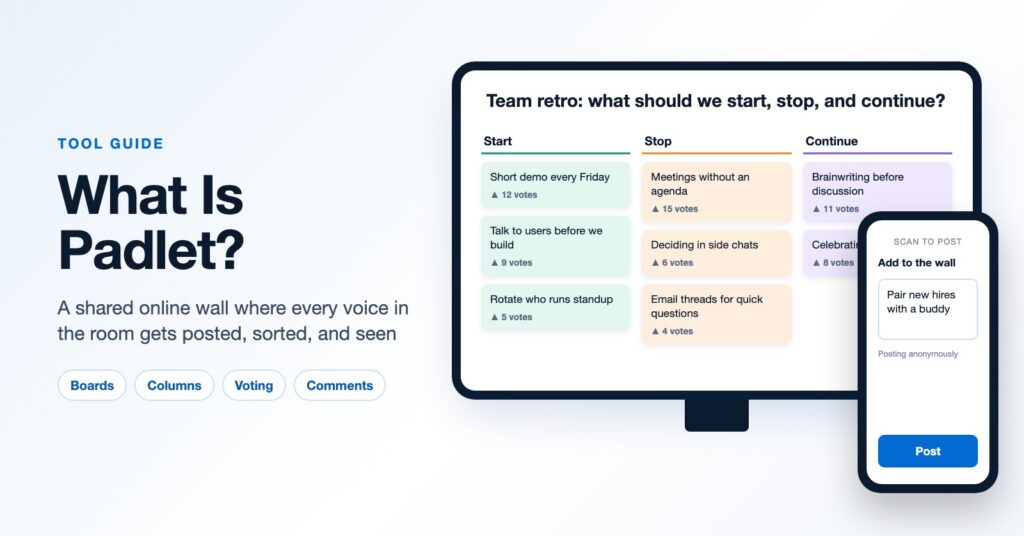
Padlet is an online board where a group can post ideas, questions, links, images, files, and short videos to the same shared space. Each board is called a padlet. You create one, share a link or QR code, and participants add posts from a phone or laptop. Everyone sees new posts appear as they come in.
Participants can contribute without creating an account, and you can let them post anonymously. That combination lowers the barrier to joining in, which matters most for the quieter people in a group and for questions people would rather not answer out loud.
Padlet started out as a favorite of teachers, and education is still its largest audience. It works just as well in workplace settings: kickoff meetings, retrospectives, offsites, training sessions, and anywhere a facilitator wants every voice on the wall before the discussion starts.
How Padlet works
Building a padlet takes a few minutes:
- Choose a format. Pick the layout that fits the activity (more on formats below), or start from a template.
- Write a clear prompt. The board title and description tell people what to post. “What is one barrier slowing our team down?” works far better than “Ideas.”
- Set permissions. Decide whether people can post, comment, react, or only view, and whether posts need your approval before they appear.
- Share it. Send the link, show the QR code on a slide, or embed the board in a web page or learning platform.
- Use what comes in. Sort, group, and discuss the posts live, then export the board as a record of the session.
Padlet formats that matter most for workshops
The format you choose shapes the conversation, so it is worth matching the layout to the activity.
Wall
Posts fill the board like sticky notes on a wall. Wall is the default for open brainstorming and quick check-ins, such as “one word for how you are arriving today.”
Columns
Posts sit in labeled columns. This is the most useful format for structured activities: Start / Stop / Continue retrospectives, “What went well / What to improve,” or one column per breakout group so each team has its own space on a single board.
Grid and Stream
Grid lines posts up in tidy rows, and Stream shows them top to bottom like a feed. Both work well when people are sharing longer reflections or examples that others should read in full.
Map and Timeline
Map pins posts to locations, a nice icebreaker for distributed teams (“Where are you joining from?”). Timeline places posts along a line, which suits project retrospectives and journey mapping.
Canvas and Sandbox
Canvas lets you arrange posts freely and draw connections between them, which helps with affinity clustering. Sandbox is Padlet’s more whiteboard-like space for drawing, shapes, and moving cards around, closer to what you would do in Miro or Mural.
Features facilitators use most
- Reactions and voting. Turn on likes, votes, stars, or scores so the group can prioritize ideas right on the board, a quick version of dot voting.
- Comments. Let people build on each other’s posts, a lightweight way to run “yes, and” or peer feedback.
- Moderation. Require approval before posts go live, or use the automatic filter, when the group is large or the topic is sensitive.
- Anonymous posting. Useful for honest input on culture, change, and risk.
- Rich posts. People can add images, links, files, voice notes, short videos, and drawings, which makes Padlet good for gallery walks and show-and-tell.
- Export. Save the board as a PDF, image, or spreadsheet so the group’s thinking does not disappear when the session ends.
How facilitators and trainers use Padlet
Pre-work and arrival. Open a board before the session with a prompt like “What challenge are you bringing today?” You walk in knowing what people care about, and participants arrive already thinking.
Silent brainstorming. Ask everyone to post ideas on their own for five minutes before any discussion. This is the digital cousin of brainwriting, and it produces more and more varied ideas than calling out answers.
Clustering and voting. Move the posts into themes, then let the group vote on which ones to develop. In a design thinking workshop this can carry a team from insights to a short list of “How might we” questions.
Gallery walks. Give each breakout team a column to post its prototype sketch or concept photo, then have everyone browse and comment on the other teams’ work.
Retrospectives and reflection. Close with “What will you do differently on Monday?” and export the board as a takeaway for the group.
Best practices for using Padlet well
- One board, one question. Boards that try to collect everything end up collecting noise.
- Model the first post. Post an example yourself so people see the length and tone you are looking for.
- Time-box the posting. Give a clear window, say three or five minutes, and tell people when to stop.
- Make sense of it live. The value is in the conversation about the posts. Read some aloud, notice patterns, and ask the group what stands out.
- Do not make the tool the event. Padlet should support a well-designed activity, not replace one.
Is Padlet free?
Padlet offers a free plan that limits how many padlets you can keep active at once, along with paid plans for individuals, schools, and businesses that raise those limits and add features such as larger uploads and more admin controls. Plans and limits change, so check Padlet’s pricing page for the current details. For an occasional workshop, many facilitators manage fine on the free plan by archiving old boards.
Padlet vs. Miro, Mural, Mentimeter, and Slido
Padlet sits between two families of tools.
Virtual whiteboards such as Miro and Mural give you an infinite canvas, frameworks, and templates for multi-step workshops. They are more powerful, and they take participants longer to learn. Padlet is easier for newcomers, which makes it a strong choice when the group has never used a whiteboard tool or when you only need one or two activities. It has also become a popular replacement for Google Jamboard, which Google retired. For a wider comparison, see our guide to virtual whiteboards for online collaboration.
Audience engagement tools such as Mentimeter and Slido are built for large audiences answering quick polls, word clouds, and Q&A on a presentation screen. Padlet is better when you want richer posts that people can read, comment on, and organize together. Many facilitators use both: a poll to get the whole room’s pulse, then Padlet for the deeper work.
Designing sessions where the tools serve the experience
Padlet is a good tool, and good tools still produce flat sessions when the activity behind them is weak. What makes a workshop memorable is the design: a clear purpose, the right sequence of activities, time for people to think and talk, and a facilitator who turns a wall of posts into a shared insight and a decision.
If you want to build those skills, our facilitation workshop covers how to design and lead interactive sessions, in person and virtually, with tools like Padlet in their proper place. And if you would like a session designed and facilitated for your team, explore our innovation workshops or contact us to talk about what you have in mind.